 |
|
|
Back to: Excel VBA . Got any Excel/VBA Questions? Excel Help | Add-in that protects multiple sheets and Workbooks (Demo Download)
Excel has protection that we can add to an Excel Worksheet via Tools>Protection>Protect Sheet. A password can also be supplied so that another user cannot unprotect it without the password.
A common question that I'm often asked is, "how can I password protect and unprotect all Worksheets in my Workbook in one go. I have many sheets and I have to protect and unprotect each Worksheet individually." Unfortunately there is no standard feature in Excel that will allow us to protect and unprotect all Worksheets in one go, however, we can use some fairly simple VBA code to do this for us. Follow the steps below.
- Open the Workbook the code is needed for. Or, go to Window>Unhide and unhide your Personal.xls to make it available to any Workbook.
- Go to Tools>Macro>Visual Basic Editor (Alt+F11) and then Insert>UserForm. This should also display the Control Toolbox. If it doesn't go to View>Toobox.
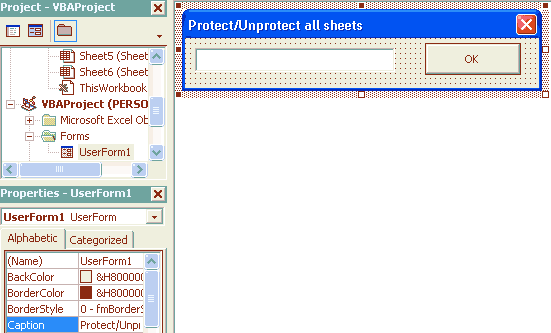
- From the Toolbox select a TextBox (ab|). Now click onto the UserForm to add it. Position it in the top left and size it so it is your preferred size.
- Ensure the Textbox is still selected and then go to View>Properties (F4). From the Properties Window of the Textbox scroll down to PasswordChar and in the white box on the right enter an asterisk *
- Now from the Toolbox select a CommandButton and then click the UserForm and position it in the top right.
- With the CommandButton still selected go to View>Properties (F4). From the Properties Window of the CommandButton scroll down to Caption and in the white box on the right enter the caption: OK. If you are using Excel 97 also scroll down to TakeFocusOnClick and set this to False.
- Now select the UserForm and from it's Properties Window find Caption and change it to: Protect/Unprotect all sheets.
Private Sub CommandButton1_Click()

Dim wSheet As Worksheet

	For Each wSheet In Worksheets

		If wSheet.ProtectContents = True Then

			wSheet.Unprotect Password:=TextBox1.Text

		Else

			wSheet.Protect Password:=TextBox1.Text

		End If

	Next wSheet

Unload me

End Sub
Sub ShowPass()

    UserForm1.Show

End Sub
This newly added feature will unprotect all Worksheets that are protected and protect all Worksheets that are unprotected.
A WORD OF WARNING: As you are not asked to confirm your password you should be very sure of what you type.
Excel Dashboard Reports & Excel Dashboard Charts 50% Off Become an ExcelUser Affiliate & Earn Money
Special! Free Choice of Complete Excel Training Course OR Excel Add-ins Collection on all purchases totaling over $64.00. ALL purchases totaling over $150.00 gets you BOTH! Purchases MUST be made via this site. Send payment proof to [email protected] 31 days after purchase date.
Instant Download and Money Back Guarantee on Most Software
Excel Trader Package Technical Analysis in Excel With $139.00 of FREE software!
Microsoft � and Microsoft Excel � are registered trademarks of Microsoft Corporation. OzGrid is in no way associated with Microsoft
Some of our more popular products are below...
Convert Excel Spreadsheets To Webpages | Trading In Excel | Construction Estimators | Finance Templates & Add-ins Bundle | Code-VBA | Smart-VBA | Print-VBA | Excel Data Manipulation & Analysis | Convert MS Office Applications To...... | Analyzer Excel | Downloader Excel
| MSSQL Migration
Toolkit |
Monte Carlo Add-in |
Excel
Costing Templates