 |
|
|
Excel Auto Outline
Download Automatic Outlining example workbook. See Also: Enable Outlining/Grouping on a Protected Sheet
Outlining is a means of viewing
levels of detail as required by collapsing or expanding to hide or show
information. You can identify subtotals and hide or collapse detail so that
only subtotals appear on the screen. Outlining will also allow you to make
detail data disappear so that only the higher level subtotals remain visible
when you are using larger worksheets. An outlined Worksheet will print
exactly as it appears on the screen. This makes Outlining an extremely
useful presentation tool.
There are two types of Outlining; Automatic Outlining, which you
would use when you have used functions to summarise your data and
Manual
Outlining
which is used when your data does not contain functions, but
instead contains values only.
Automatic Outline
You could use an Automatic Outline for numeric data organised into specific groups, just like in the following screen shot for a Sports Equipment Store Expenditure: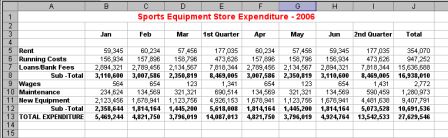
To create an Automatic Outline, follow these steps:
When you Outline a worksheet, buttons will appear around the rows and/or columns that have been outlined. Buttons with the numbers 1, 2, 3 indicate an outlining level. These buttons can be clicked on to expand or collapse all summary levels to that level. You will also notice the collapse button (-) and an expand (+) button. The collapse button will indicate that the associated summary level has been expanded to show the detail levels. Click the button and you will collapse that summary level and hide the detail levels. The expand button works in the same way. It indicates that the associated summary level has been collapsed to hide the detail levels. When clicked, this button will expand the summary level and display the detail levels.
Following is a screen shot of the Sports Equipment Store Expenditure data with an Automatic Outline applied.
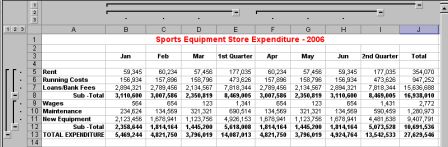
If the Automatic Outline
created does not suit your requirements, you may need to use a Manual
Outline and create your own sub-groups.
Click here to learn about Manual Excel Outlining
Download Automatic Outlining example workbook
Excel Dashboard Reports & Excel Dashboard Charts 50% Off Become an ExcelUser Affiliate & Earn Money
Special! Free Choice of Complete Excel Training Course OR Excel Add-ins Collection on all purchases totaling over $64.00. ALL purchases totaling over $150.00 gets you BOTH! Purchases MUST be made via this site. Send payment proof to [email protected] 31 days after purchase date.
Instant Download and Money Back Guarantee on Most Software
Excel Trader Package Technical Analysis in Excel With $139.00 of FREE software!
Microsoft � and Microsoft Excel � are registered trademarks of Microsoft Corporation. OzGrid is in no way associated with Microsoft
Some of our more popular products are below...
Convert Excel Spreadsheets To Webpages | Trading In Excel | Construction Estimators | Finance Templates & Add-ins Bundle | Code-VBA | Smart-VBA | Print-VBA | Excel Data Manipulation & Analysis | Convert MS Office Applications To...... | Analyzer Excel | Downloader Excel
| MSSQL Migration
Toolkit |
Monte Carlo Add-in |
Excel
Costing Templates